Procedure
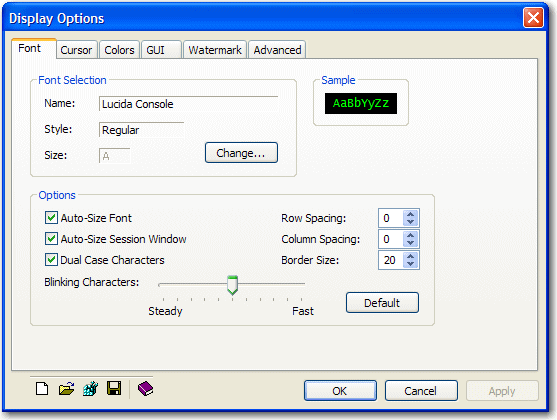
1. From the BlueZone MenuBar select Options::Display, The Display Options dialog will be displayed as shown here:
2. In the Font Selection group, select the Change button.
3. The Font dialog will be displayed as shown here:
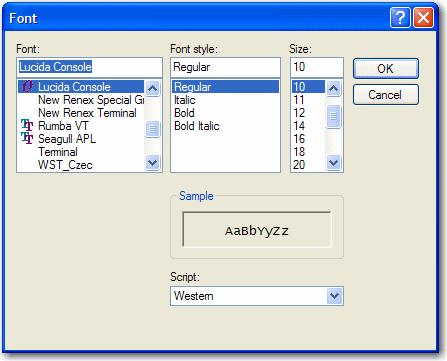
4. Using your mouse, select the desired font from the list of available fonts in the left hand pane.
 NOTE
Only fixed pitch fonts are displayed in the font list.
NOTE
Only fixed pitch fonts are displayed in the font list.
5. Now, choose the desired font style and size.
6. Click the OK button to apply the changes.
7. Changes will be automatically saved when you close the session window.
Procedure
1. From the BlueZone MenuBar select Options::Display, The Display Options dialog will be displayed.
2. Click the Colors tab. The Colors dialog will be displayed as shown here:
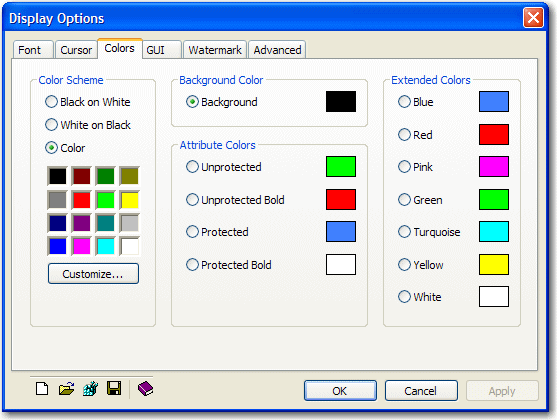
3. By default, the Background color is selected by default. This is a the "Active Selection". Note the radio button next to Background in the above example.
4. To change the background color, use your mouse to select the desired color form the color grid in the Color Scheme group. Click the Apply button to apply the new color.
5. To change the colors of the characters, use your mouse to select one of the items in the Attribute Colors group and make that attribute the "Active Selection".
NOTE
There can only be one "Active Selection" at a time.
6. Once one of the Attribute Colors has been selected, use your mouse to select the desired color form the color grid in the Color Scheme group. Click the Apply button to apply the new color.